Unit 04 - Switching
Switching to Free Software: A Practical Step-by-Step Guide for Everyday Users
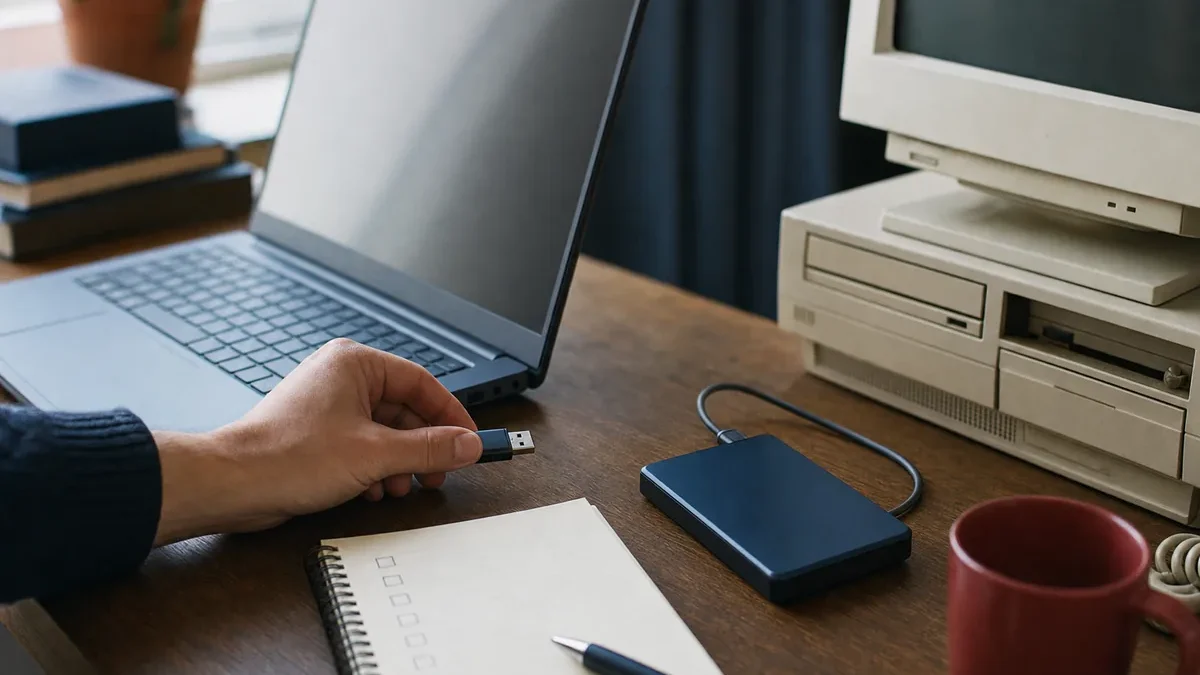
Switching to free software fails when it is attempted as one heroic weekend, and succeeds when it is run as a sequence of small, reversible moves. This guide lays out that sequence: applications first, operating system later, data portable at every step. Followed in order, it gets an everyday computer user onto a fully free stack in a few unhurried weeks, with a working machine at every point in between.
Step one: take inventory before touching anything
List what you actually do with your computer for a week: the programs you open, the file formats you exchange, the one obscure tool your work depends on. The list is usually shorter than expected, and it converts a vague ambition into a concrete migration plan. Mark each item as easy (a browser is a browser), replaceable (office suite, mail, photos) or hard (that one Windows-only tax program). The hard items decide your strategy; everything else is routine.
Step two: switch applications on your current system
Replace programs one at a time while staying on the operating system you know. Firefox for browsing, LibreOffice for documents, Thunderbird for mail, GIMP and Inkscape for images, VLC for media. Run each replacement for two normal weeks before adding the next, and save your documents in open formats as you go. This stage does most of the real work: by the end of it, the operating system underneath barely matters, because everything you touch daily is already free software.
Two weeks per application is not caution theatre. Muscle memory, not missing features, is what actually sends people back, and it dissolves on its own schedule. One replacement at a time keeps every frustration diagnosable.
Step three: test a free operating system without commitment
Modern GNU/Linux distributions boot from a USB stick without touching your disk. Write Linux Mint or another beginner-oriented distribution to a stick, boot it, and check the things no review can check for you: does the Wi-Fi work, the printer, the second screen, the laptop's sleep? An afternoon of live-USB testing answers the hardware question definitively and costs nothing. If something fails, note the component and search for it with the distribution's name; the fix is usually documented.
Step four: install, migrate, and keep a bridge
When the live test passes, back up everything twice, then install, either alongside the old system (dual boot) or over it. Copy your files into place and point the applications you already switched in step two at them; because you standardised on open formats earlier, they simply open. Keep the old system's backup for a quarter as a bridge. Most people report the same anticlimax: the migration they postponed for years turns out to have been the easy part, because the preparation was the migration.
Staying switched
The habit that makes the change stick is asking the community before assuming something is impossible. Every distribution runs forums where hardware quirks and workflow questions get answered daily, and the learning materials guide lists structured courses for going deeper than daily use. Longer term, the users who stay are usually the ones who start giving back in small ways; the contributor's guide shows how short that path is. And when a program's behaviour puzzles you, remember that its licence guarantees your right to ask exactly what it is doing.
Frequently asked questions
How long does switching to free software take?
Plan for a few weeks of casual effort: one application replaced at a time on your current system, then a live-USB hardware test, then the operating system install last. Each step is small and reversible.
Do I have to give up Windows or macOS to use free software?
No. Firefox, LibreOffice, GIMP, Thunderbird and VLC all run on Windows and macOS, and replacing applications there is the recommended first stage. The operating system switch is optional and comes last.
Will my files still open after switching?
Yes, if you standardise on open formats during the application stage. LibreOffice reads existing Microsoft Office files well, and saving new work in open formats guarantees it opens everywhere afterwards.
What is the easiest free operating system for beginners?
Beginner-focused GNU/Linux distributions such as Linux Mint are the usual recommendation: familiar desktop layout, graphical installers and large support communities. Test from a live USB first to confirm your hardware works.